









.svg)







.png)

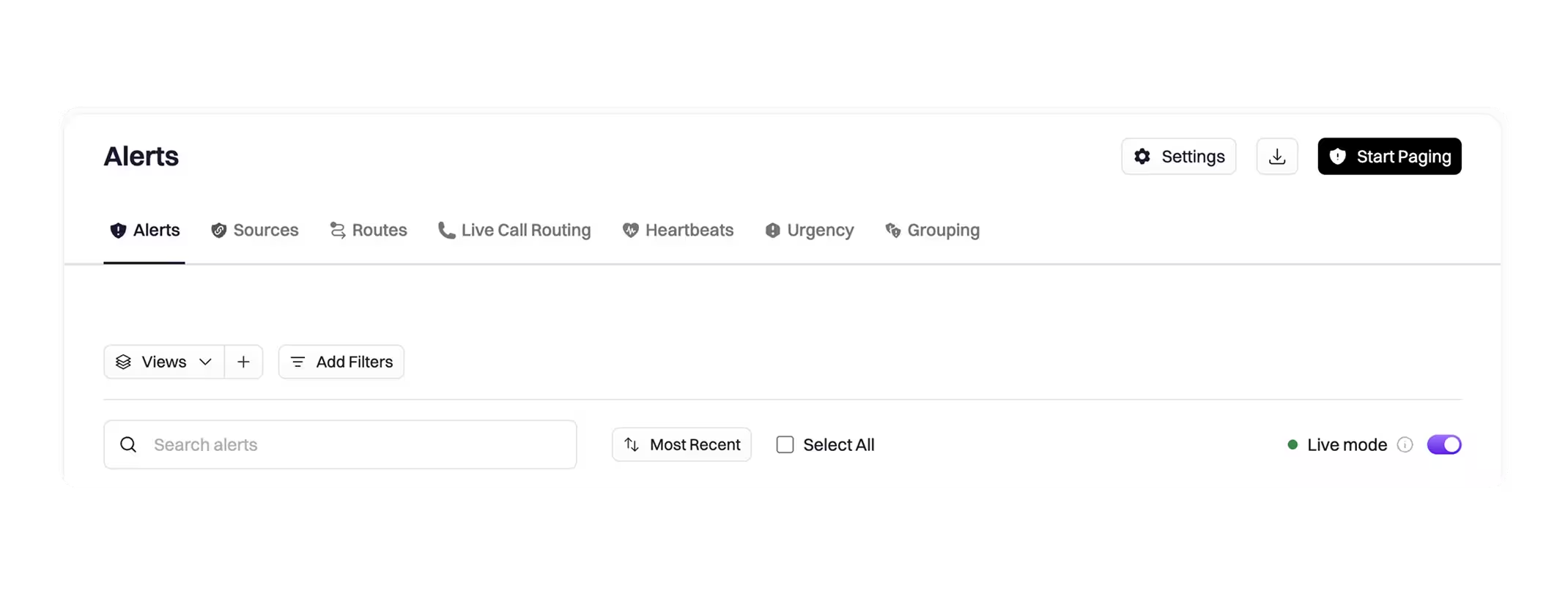
The Alerts view now has a Live Mode toggle that streams new alerts directly into the table as they arrive—no full page reloads, no lost filters or selections.
Why it matters
During active incidents and high-volume alert storms, the Alerts page has always required manual refreshes to see what’s new. That trade-off forced responders to choose between staying current and keeping their filter state intact. Live Mode removes that trade-off.
With Live Mode on, you get a true operational view: alerts appear as they’re created, updates apply in place, and your UI state stays exactly where you left it. When you want a controlled review experience—for triage, bulk actions, or filtering—turn Live Mode off and new alerts queue behind a refresh button so you choose when to load them.
How it works
A Live Mode toggle now appears on the Alerts view.
- Live Mode on: When you’re on the Alerts page, new alerts stream directly into the table. Updates to visible alerts apply in real time.
- Live Mode off: New alerts queue behind a refresh button. Load them when you’re ready.
When to use it
- On-call monitoring and NOC views where real-time context is essential
- Active incident response where you need to see what’s firing now
- High-volume alert streams where staying current matters
Turn Live Mode off when you want a static view for triage, filtering, or bulk actions.
Check out the docs to learn more.